
How to Use Traefik as a Reverse Proxy for Docker Apps
Shamal Iroshan
2025-12-06 | 4 min read
Managing routing, SSL certificates, and multiple services is one of the biggest challenges when hosting containerized applications. Tools like NGINX work, but they require manual configuration and certificate updates.
Traefik makes this automatic.
Traefik is a modern reverse proxy and load balancer built specifically for running applications in dynamic, containerized environments like Docker. It automatically detects containers, configures routing, and issues free HTTPS certificates via Let’s Encrypt — without restarting.
In this guide, we’ll walk through how to set up Traefik as a reverse proxy for Docker applications in a real production setup.
Why Use Traefik Instead of NGINX?
Traefik has several advantages:
✅ Automatic HTTPS certificates (Let’s Encrypt)
No cron jobs, no manual renewal.
✅ Dynamic configuration
Start a container → Traefik instantly routes traffic to it.
✅ Container-based routing using labels
You configure everything with Docker labels — no config files.
✅ Built-in dashboard
Easy visibility into routers, services, and middleware.
✅ Ideal for microservices
Add or remove services without restarting your reverse proxy.
If you're running multiple Docker apps on a VPS, Traefik is one of the cleanest solutions available.
System Architecture Overview
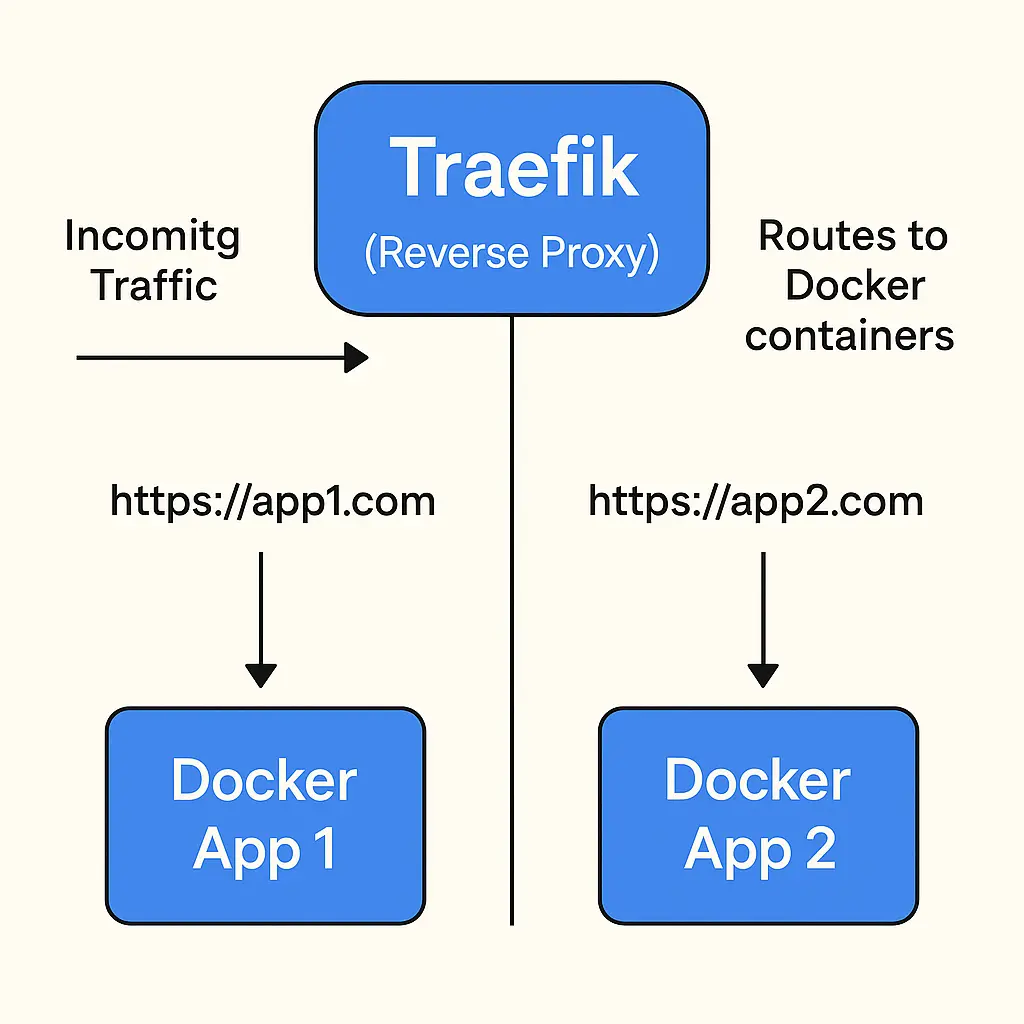
Diagram: Traefik routing incoming traffic to multiple Docker applications.
Traefik listens on ports 80 and 443, and based on labels on containers, it automatically routes each hostname to the correct application.
Step 1: Create a Traefik Docker Network
This network allows Traefik to communicate with your applications.
docker network create traefik-proxy
Step 2: Create Traefik’s Docker Compose File
Create a folder:
mkdir traefik && cd traefik
Create docker-compose.yml:
version: "3.9"

services:
  traefik:
    image: traefik:v3.0
    container_name: traefik
    command:
      - "--api.dashboard=true"
      - "--providers.docker=true"
      - "--providers.docker.exposedbydefault=false"
      - "--entrypoints.web.address=:80"
      - "--entrypoints.websecure.address=:443"
      - "--certificatesresolvers.le.acme.httpchallenge=true"
      - "--certificatesresolvers.le.acme.httpchallenge.entrypoint=web"
      - "[email protected]"
      - "--certificatesresolvers.le.acme.storage=/letsencrypt/acme.json"
    ports:
      - "80:80"
      - "443:443"
    volumes:
      - "/var/run/docker.sock:/var/run/docker.sock:ro"
      - "./letsencrypt:/letsencrypt"
    networks:
      - traefik-proxy

networks:
  traefik-proxy:
    external: true
What this does:
- Enables Traefik dashboard
- Enables Docker provider
- Routes based on container labels
- Enables HTTPS with automatic certificates
- Opens ports 80 & 443
Step 3: Run Traefik
docker compose up -d
Traefik is now running.
Step 4: Deploy a Docker App Behind Traefik
Example: A simple web app.
Create app/docker-compose.yml:
version: "3.9"

services:
  web:
    image: nginx:alpine
    container_name: demo-app
    labels:
      - "traefik.enable=true"
      - "traefik.http.routers.demo.rule=Host(`demo.yourdomain.com`)"
      - "traefik.http.routers.demo.entrypoints=websecure"
      - "traefik.http.routers.demo.tls.certresolver=le"
    networks:
      - traefik-proxy

networks:
  traefik-proxy:
    external: true
Explanation of labels:
traefik.enable=true→ allow Traefik to manage this container- Route traffic where:
→ Hostname = demo.yourdomain.com - Use HTTPS
- Automatically generate the certificate
Step 5: Run the app
docker compose up -d
Now visit:
👉 https://demo.yourdomain.com
and your app loads instantly — with automatic SSL.
Step 6: Access Traefik Dashboard
Add this router in the Traefik compose:
- "--api.insecure=true"
Then access:
👉 http://your-server-ip:8080/dashboard/
⚠️ Never expose the dashboard publicly in production without securing it.
🛡️ Security Best Practices
To make Traefik production-ready:
✔️ Use a real domain
Traefik only issues certificates with valid DNS.
✔️ Secure the dashboard
Use Basic Auth middleware.
✔️ Always use versioned images
Example: traefik:v3.0.0
✔️ Backup your ACME storage
./letsencrypt/acme.json
Contains your SSL certificates.
🟢 Is Traefik Better Than NGINX for Docker Setups?
| Feature | Traefik | NGINX |
|---|---|---|
| Auto HTTPS | ✅ Yes | ❌ Manual |
| Dynamic routing | ✅ Yes | ❌ Requires reload |
| Docker integration | Excellent | Basic |
| Best for microservices | Yes | No |
| Config complexity | Low | Medium/High |
Traefik clearly wins for Docker environments.
🏁 Final Thoughts
Traefik is one of the most powerful tools you can use in a Docker-based deployment.
It eliminates manual configuration, simplifies SSL management, and automatically routes traffic to any service you run.
Once you set it up, deploying new applications becomes as simple as:
Add labels → Deploy container → Done
Your entire hosting infrastructure becomes far more maintainable and scalable.